Type text where paste won't reach.
It sends your text as real keystrokes, one character at a time, into whatever you click. Remote desktop sessions with the clipboard switched off, forms that block pasting, spreadsheets, and legacy software with no import button. If you can type there, so can Rats, I Typed It All.

- Windows installer and Mac app, both included
- Types into any app, including remote desktops
- One-click presets for chat, sheets, code and forms
- Download link also emailed to you
Watch it type where paste can't.
No screen recording, these are the real motions: the countdown, then text arriving one keystroke at a time into a window that refuses a paste.
Prefers-reduced-motion is respected: with it on, the demos show their finished state instead of animating.
Everything it does, in one small window.
These are real screenshots of the app. Pick a topic to see the part of it that handles that job.
If you can type there, so can it.
- Remote desktops. Citrix, Remote Desktop, VMware and VNC, even with the shared clipboard switched off.
- Fields that block paste. Portals and forms that ignore Ctrl+V get the text one key at a time.
- Any app on Windows or Mac. Documents, browsers, chat apps, spreadsheets, code editors and older business software.
- Any language. Accents, symbols and emoji arrive exactly, whatever your keyboard layout.
- Exactly what you gave it. No autocorrect, no rewording, nothing added or left out.
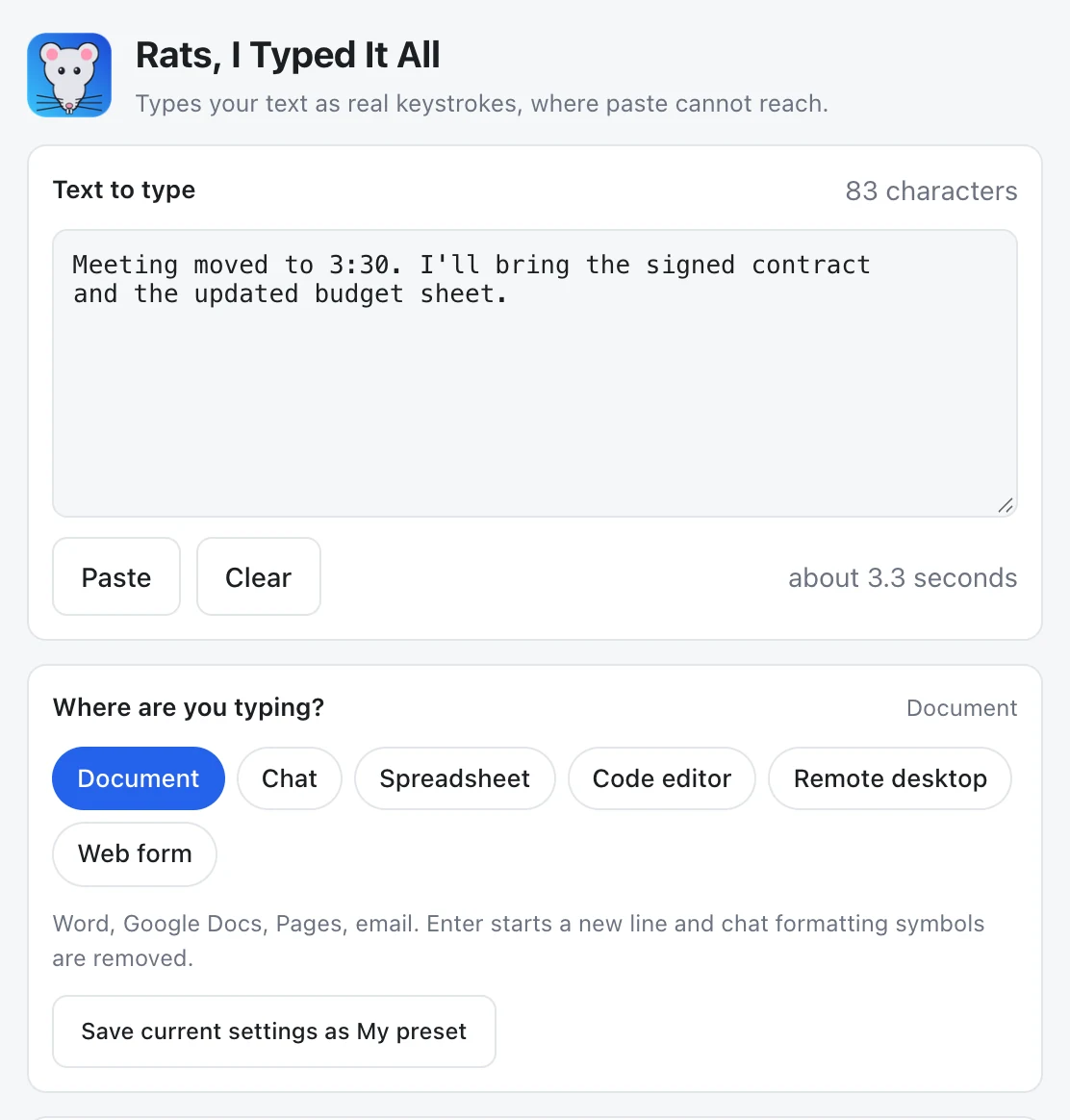
Pick where you're typing. The settings follow.
- Document. Word, Google Docs, Pages and email.
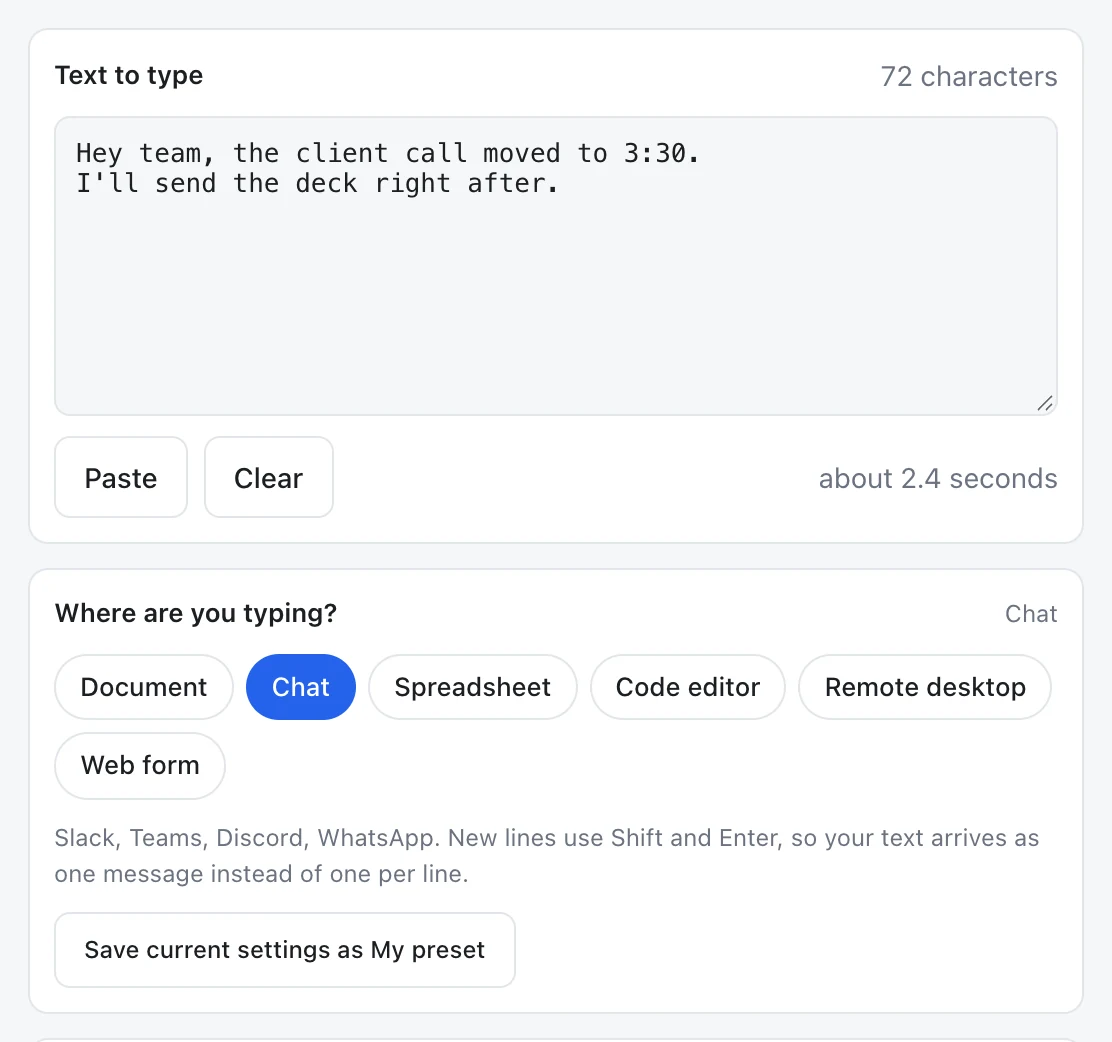
- Chat. Slack, Teams and Discord. New lines use Shift+Enter, so your text goes out as one message.
- Spreadsheet. Turns on table mode for Excel and Google Sheets.
- Code editor. Strips leading spaces so auto-indent isn't doubled, and keeps symbols like ** and backticks.
- Remote desktop. Slow and steady, so no keys are dropped on the way.
- Web form. Line breaks become spaces, so Enter never submits a form halfway.
- My preset. Save your own mix of settings and get it back in one click.
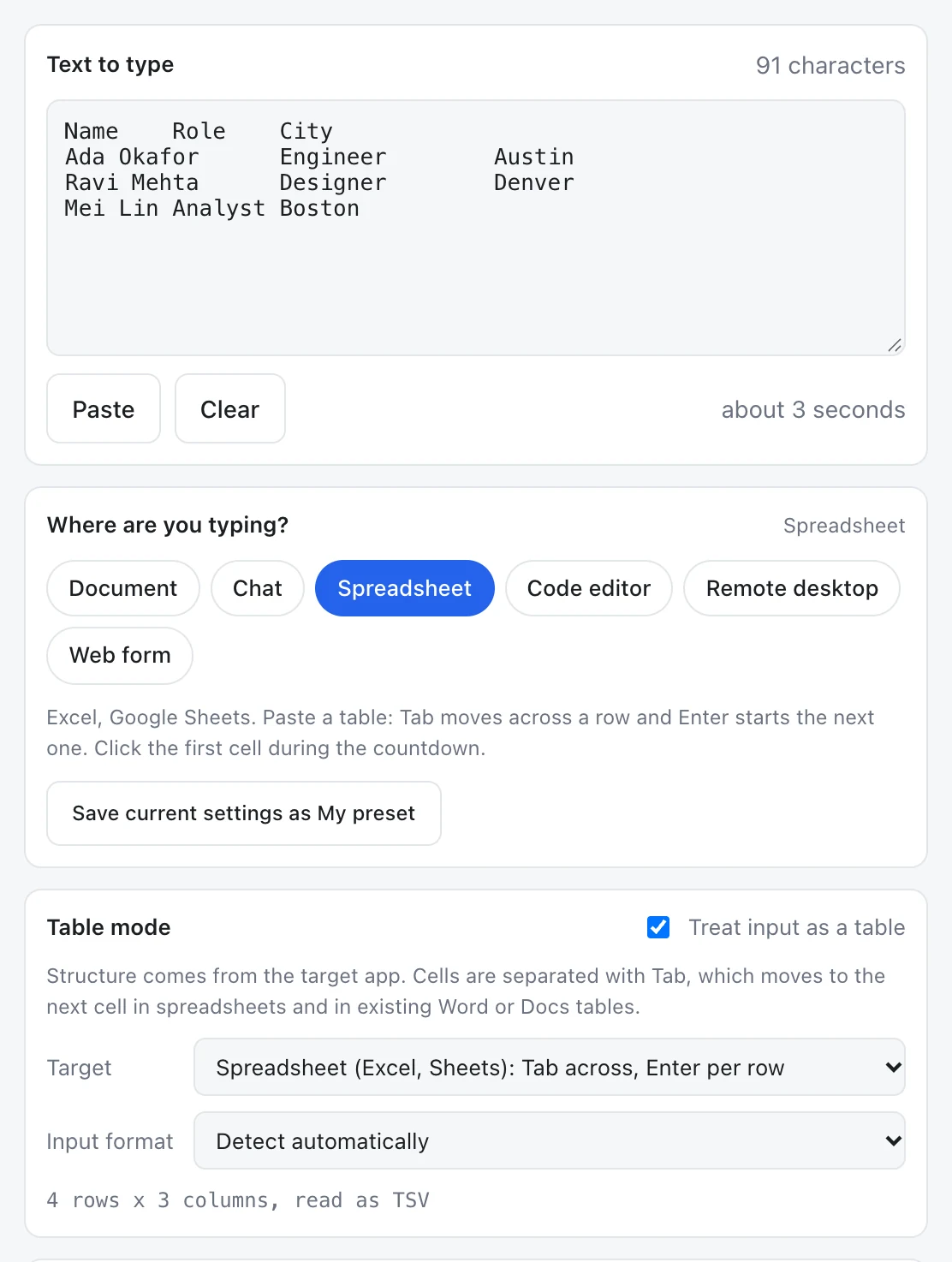
Paste a table, fill a grid.
- Spreadsheets. Tab moves across a row and Enter starts the next one, in Excel and Google Sheets.
- Tables in Word and Google Docs. Insert an empty table, click its first cell, and it tabs through every cell.
- Copied from anywhere. A sheet, a web page or a .csv file. Comma or tab separated is detected for you.
- Checked before you start. It shows how many rows and columns it read, so you know what's coming.
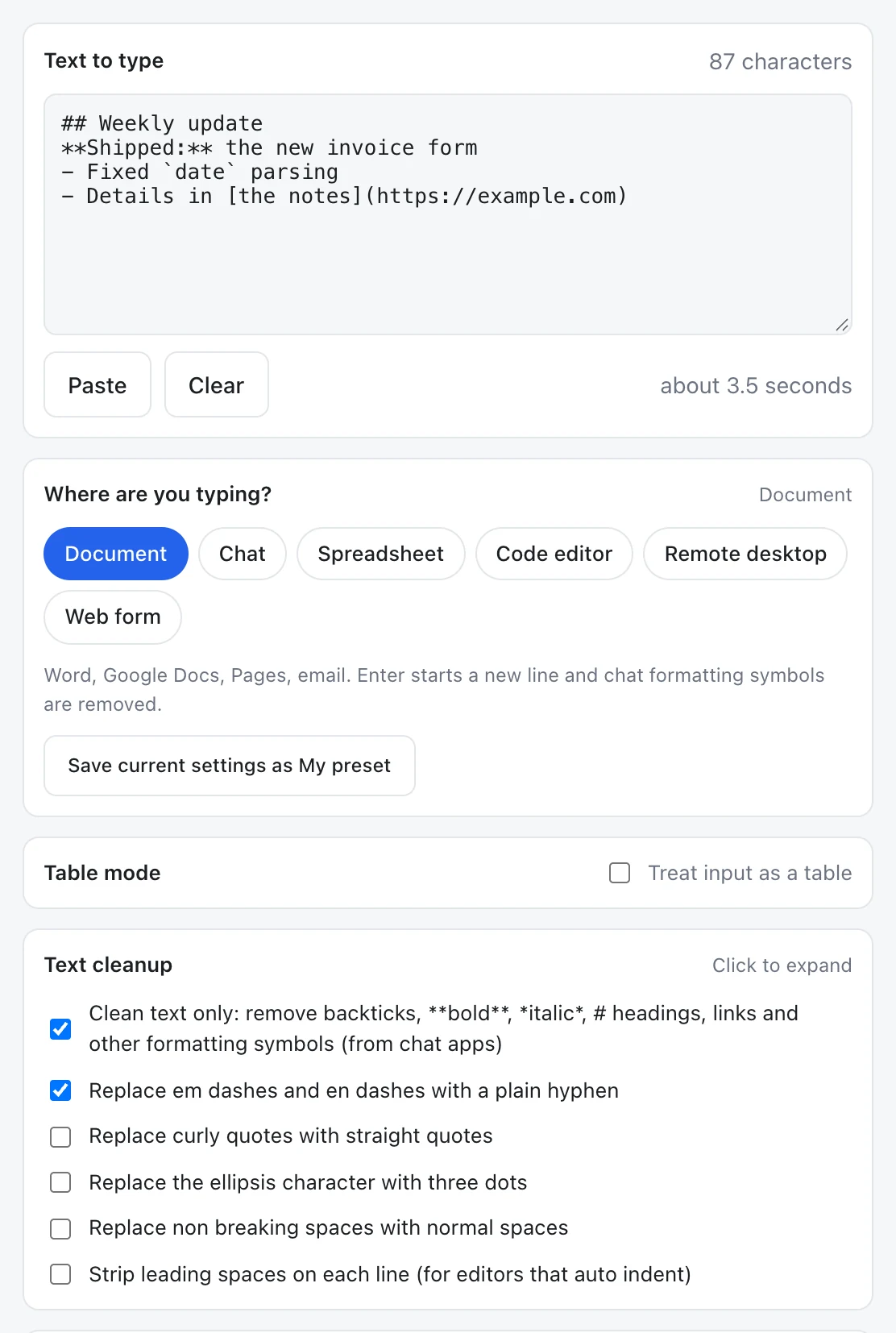
Strips what chat apps copy along with your words.
- Formatting symbols. Bold and italic stars, # headings, backticks, quote marks, link code and divider lines.
- Long dashes become plain hyphens.
- Curly quotes, the single-character ellipsis and invisible special spaces become plain characters, each one optional.
- Leading spaces can be stripped for editors that indent on their own.
- Maths and code survive. Things like 2 * 3 and my_file are left exactly as written.
Your pace, and a key that stops it.
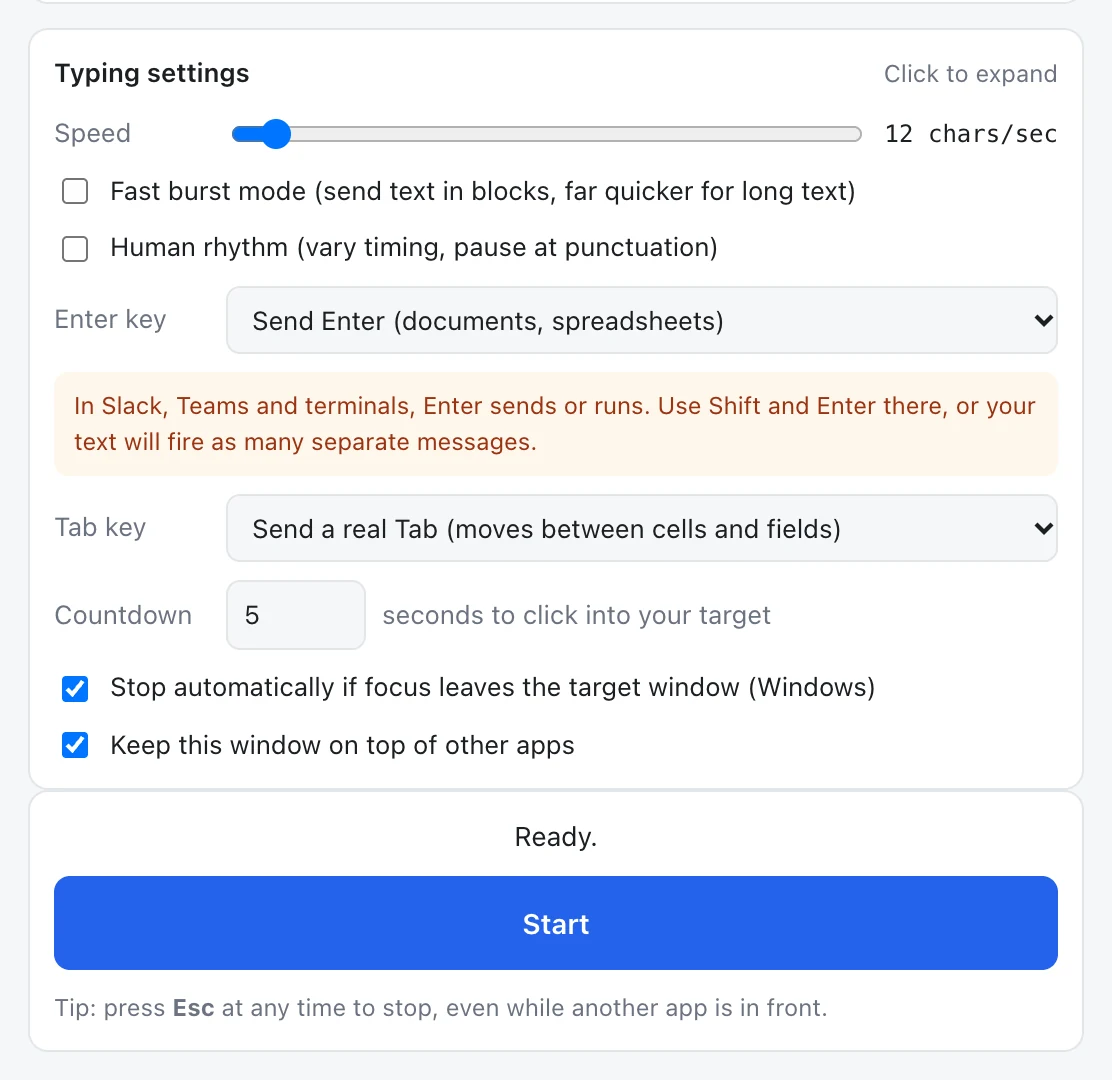
- Speed from 2 to 200 characters a second, or burst mode for long text.
- Human rhythm. Timing varies and it pauses at punctuation, which looks natural in screen recordings and live demos.
- A 1 to 60 second countdown to click into the place the text should go.
- Enter and Tab your way. Enter, Shift+Enter, a space or nothing. A real Tab, or spaces.
- Esc stops it at once, even with another app in front. On Windows it also stops if you switch windows.
- A timer when it's done, and a switch to keep the window on top or out of the way.
Typing that looks natural on screen.
Most auto-typers hit every key at exactly the same interval, and it shows. Turn on Human rhythm and it types the way people do: timing varies from key to key, and it pauses briefly after commas, full stops and line breaks.
- Screen recordings and tutorials. Show text being entered on camera without typos, retakes, or robotic-looking input.
- Live demos and presentations. Walk an audience through a product while the text types itself at a readable, natural pace.
- Streams and walkthroughs. Keep the viewer's eye on what matters instead of on a keyboard.
- Your choice of pace. Leave it off for perfectly even typing, or on for a relaxed, human feel.
Four steps, about ten seconds.
Paste your text
Drop it into the app and pick a preset for where it's going.
Press Start
A short countdown begins, five seconds by default.
Click your target
Click into the field, document or remote window where the text should go.
Watch it type
It types into that spot and tells you when it's finished. Esc stops it any time.
Two ways to use it.
Install the app once, or type straight into websites from Chrome with a monthly subscription.
Desktop app
- Windows and Mac
- Types into any app: remote desktop software, Excel, Word, older business programs
- Presets, table mode, clean text and Esc to stop
- Yours to keep, no account
Chrome extension
- Works in Chrome on Windows, Mac, Linux and Chromebooks, with nothing else to install
- Types into any website: Google Docs, Gmail, web forms, browser-based remote desktops
- The same presets, clean text and Esc to stop as the app
- Cancel in two clicks from the extension
While it types, Chrome shows a bar saying the extension is debugging the page. That's how it sends real keystrokes, and it goes away when typing ends.
Good to know before you buy.
What do I get for $5?
Both versions: the Windows installer and the Mac app. It's a one-time payment with no subscription and no account. Your download link appears straight after checkout and is also emailed to you.
Windows or Mac says it can't verify the app. Is that normal?
Yes. The app isn't signed with a paid certificate yet, so your system shows a caution the first time. On Windows, click "More info" and then "Run anyway". On Mac, open System Settings, then Privacy and Security, and click "Open Anyway" next to the app. You only do this once.
Why does the Mac version ask for Accessibility permission?
macOS requires it before any app can send keystrokes to another app. The app shows a button that opens the right settings page: switch Rats, I Typed It All on, then quit and reopen it. Windows needs no equivalent permission.
How do I stop it partway through?
Press Esc. It works even while another app is in front, and stops within a keystroke. Keystrokes go wherever your cursor is, so otherwise leave the keyboard and mouse alone until it finishes. On Windows it also stops by itself if you switch to a different window mid-run.
Will it type into an app running as administrator?
On Windows, no. Windows doesn't let a normal app send keystrokes to a program running with administrator rights. Run the target app normally and it works.
What's the difference between the app and the Chrome extension?
The $5 app is installed on Windows or Mac and types into any program on the computer, including remote desktop software and Excel. The extension, $5 a month, lives in Chrome and types into websites only, on any computer that runs Chrome. Pick the app if you type outside the browser, the extension if everything you do is in Chrome.
How do I cancel the subscription?
Click the extension's icon, then "Manage or cancel subscription", or use the same link on this page with your license key. It opens Stripe's billing page, where you can cancel in two clicks. You keep access until the end of the month you've paid for.
I lost my download link.
Use "Already purchased?" below with the email you checked out with, and a fresh link is sent to you.
Windows and Mac included. Type anywhere a keyboard works.